


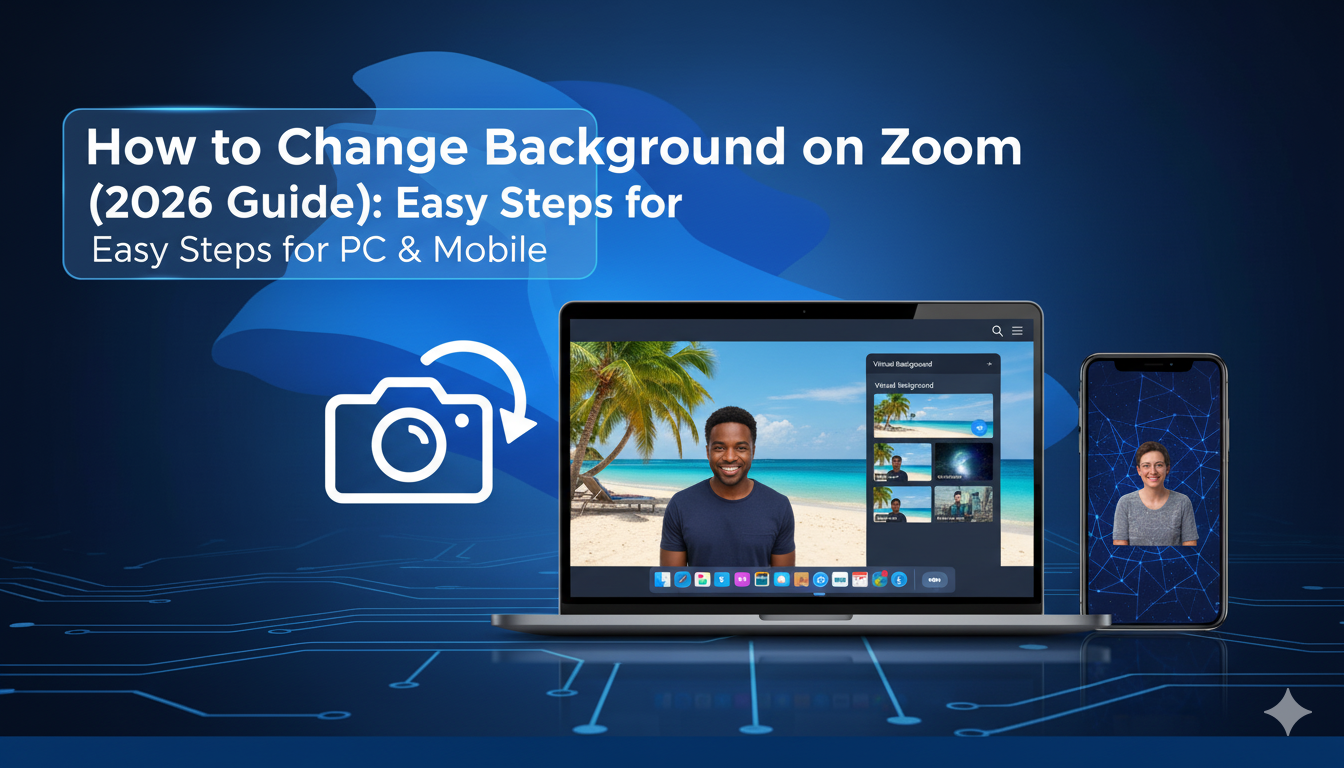
In today’s world, we spend a lot of time in virtual meetings. Whether you are a student, a teacher, or a remote worker, how you look on camera is important. Sometimes, your room might be a bit messy. Other times, you may just want to add a touch of fun or professionalism to your call. Learning how to change background on Zoom is the easiest way to stay private and look polished.
In 2026, Zoom has made this feature better than ever. You no longer need a fancy “green screen” for most modern laptops and phones. With just a few clicks, you can transport yourself to a cozy office, a sunny beach, or even a futuristic space station. It is a simple trick that makes a huge difference in how others see you. Plus, it saves you the stress of cleaning up your home office before every single call!
Checking Your System for Zoom Virtual Backgrounds
Before we dive into the steps, let’s make sure your device is ready. To change background on Zoom without glitches, your computer or phone needs a bit of power. Most new devices from the last few years work perfectly. If you have an older laptop, you might see a message saying you need a “green screen.” Don’t worry! Most of the time, simply updating your Zoom app to the 2026 version solves this.
I remember once trying to use a beach background on a very old tablet. My head kept disappearing into the ocean! That happened because the processor was too slow to tell the difference between my hair and the wall. To avoid this, always check for updates. Open your Zoom app, click your profile picture, and select “Check for Updates.” Keeping your software fresh ensures the background sticks to you like glue.
Step-by-Step: How to Change Background on Zoom (Desktop)
Changing your look on a PC or Mac is very straightforward. First, open your Zoom desktop app and sign in. Look for the small gear icon (Settings) in the top-right corner. Once you click that, a menu will pop up. Look for the tab labeled “Background & Effects.” This is where the magic happens! You will see a list of pre-set images like a bridge or grass.
To change background on Zoom using your own photo, click the plus (+) icon. You can then upload a picture of your favorite vacation spot or your company logo. If you are already in a meeting and realize your background is a mess, don’t panic! Click the small arrow next to the “Stop Video” button at the bottom of your screen. Select “Choose Virtual Background,” and you can swap it instantly without leaving the call.
Using the Blur Feature for a Natural Look
Sometimes, you don’t want a fake-looking beach. You just want your real room to look a little softer. This is where the Blur option comes in handy. It is the most popular way to change background on Zoom because it looks professional and subtle. It keeps you in sharp focus while making everything behind you look fuzzy. It’s like using “Portrait Mode” on a smartphone camera.
The Blur tool is located in the same “Background & Effects” menu. I personally use this during my morning SEO strategy meetings. It hides the pile of laundry on my chair but doesn’t make me look like I’m sitting in a cartoon. A quick tip: if the blur looks “choppy” around your ears, try moving a lamp in front of your face. Good lighting helps the AI see exactly where you end and the background begins.
How to Change Background on Zoom Using Mobile (Android & iOS)
If you are joining a meeting from your phone, you can still look great. To change background on Zoom on mobile, you usually have to be inside the meeting first. Once the call starts, tap your screen to see the controls. Look for the “More” button (it looks like three dots). Tap that, and then select “Background & Effects” (on some iPhones, it might say “Background & Filters”).
From here, you can pick a blur or an image. One thing to note is that Android users often can’t change their background before the meeting starts, whereas iPhone users can find it in their app settings under “Meetings.” I’ve found that using a virtual background on mobile drains the battery a bit faster. If you are on a long call, make sure your charger is nearby so your phone doesn’t die right in the middle of a presentation!
System Requirements and Troubleshooting Tips
| Feature | Windows/Mac Requirements | Mobile Requirements |
| Blur Background | Core i3 (4 cores) or higher | iPhone 8+ / Android 8.0+ |
| Virtual Image | Most modern 64-bit OS | Same as Blur |
| Virtual Video | Core i5 or higher | High-end devices only |
| Green Screen | Required for very old PCs | Not supported on mobile |
If you can’t find the option to change background on Zoom, your computer might be missing a small piece of software. Sometimes a popup will ask you to “Download Smart Virtual Background package.” Always say yes! This is a safe file from Zoom that helps the camera track your movement. If the “Blur” button is missing entirely, it usually means your processor is a bit too old to handle the effect.
Adding Your Own Custom Images and Videos
One of the coolest parts about being able to change background on Zoom is the customization. You aren’t stuck with the basic options. You can use high-quality photos (16:9 ratio is best) to create your own vibe. Many professionals use a photo of a clean, modern office. It makes you look like you are sitting in a multi-million dollar boardroom even if you are actually in your kitchen!
You can even use videos as backgrounds. Imagine sitting in front of a gently moving waterfall or a quiet coffee shop with steam rising from a cup. Just be careful not to pick anything too distracting. If there are people walking in your background video, your coworkers might spend more time watching them than listening to you. Keep it simple and high-resolution (1280×720 pixels) for the best result.
How to Use Zoom Video Filters and Studio Effects
In 2026, Zoom is about more than just backgrounds. You can also use Video Filters to change the color of your screen. Want a warm, sepia look? Or maybe a professional black-and-white vibe? You can find these right next to the background settings. There is also a feature called “Studio Effects.” This lets you add virtual eyebrows, lip color, or even a beard!
I once used the “Touch up my appearance” slider before a big presentation when I hadn’t slept well. It smooths out your skin and makes you look refreshed. To find this, go to Video Settings and look for the “My Video” section. When you combine these effects with the ability to change background on Zoom, you have total control over your digital identity. It’s like having a mini-makeup artist and a set designer right in your laptop.
Pro Tips for a Flawless Virtual Background
To truly master how to change background on Zoom, you need to think about your physical space. First, try to sit in front of a plain, solid-colored wall. If your wall is the same color as your shirt, the computer will get confused and might blur your clothes! Contrast is your best friend. Wear a dark shirt if your wall is white, or a light shirt if your wall is dark.
Second, stay still. If you move your hands around a lot while talking, you might see “ghosting” or flickering around your fingers. This is normal, but staying relatively centered in the frame helps the software work better. Lastly, check your “Mirror my video” setting. If you have text on your background (like a company name), it might look backwards to you but correct to others. Don’t worry, Zoom usually handles the flipping automatically!
Conclusion: Level Up Your Virtual Presence
Learning to change background on Zoom is a small skill that pays off in a big way. It gives you privacy, boosts your confidence, and makes your meetings more enjoyable. Whether you prefer a professional blur or a fun custom image, the steps are easy enough for anyone to follow. Just remember to keep your app updated and your lighting bright!
Are you ready to try out a new look for your next meeting? Go ahead and explore the “Background & Effects” menu today. You might be surprised at how much more relaxed you feel when you don’t have to worry about what’s behind you. Happy Zooming, and may your virtual office always look spotless!
Frequently Asked Questions (FAQs)
1. Why don’t I see the option to change background on Zoom?
This usually happens if your Zoom app is outdated or your computer doesn’t meet the hardware requirements. Try updating to the latest 2026 version. If your PC is very old, you may need a physical green screen to enable this feature.
2. Can I change background on Zoom for free?
Yes! The ability to use virtual backgrounds, blur, and filters is a free feature for all Zoom users. You do not need a paid subscription to look professional or hide your messy room.
3. What is the best image size for a Zoom background?
For the best fit, use an image with a 16:9 aspect ratio. A resolution of 1280 x 720 pixels or 1920 x 1080 pixels works perfectly. This ensures your background isn’t blurry or stretched out.
4. How do I stop my hair from disappearing into the background?
This is a common issue caused by poor lighting or a “busy” real-life background. To fix it, put a light source in front of your face and sit in front of a plain, solid-colored wall.
5. Can I use a video as my Zoom background?
Absolutely! You can upload MP4 or MOV files. Just click the plus (+) icon in the Backgrounds menu and select “Add Video.” Make sure the video is subtle so it doesn’t distract your teammates.
